|
-
Hammerhead Shark

Bringing in a Surface Pro
I'm a long time Android user/fan. I currently have a Xyboard tablet, which I like. But the Xyboard isn't even close to a Notebook replacement. It does the same task as my smartphone, and really nothing more. Yes, it presents Netflix a lot better, but it isn't any good for spreadsheets or documents.
The Surface Pro is the first tablet that bridges the divide between a tablet and an Ultrabook. While I have been fairly critical of Windows 8 up to this point, the Surface is the right platform for it. Touchscreen and gesture rich, it's what 8 was designed for. The I5 should have plenty of power and reviews confirm that no tablet is in the same class, with the Surface Pro besting most Ultras, including the Apple and Asus offerings. In fact the Mac Air is crushed by the Surface.
The big concern is battery life. Can the Surface offer enough to make it a reasonable tablet? The Xyboard runs about 8 to 10 hours of Netflix and browsing. No way the Surface can match it - but 4 or 5 hours will be fine. I don't mind a mid-day recharge, I just don't want it crapping out on a flight or train ride.
I'll keep fellow sharks updated. It should come in on Monday.
RIG:
XCLIO 2000 Black & Titanium Case
KingWin Gold Certified 80+ 1000 Watt PS
Asus P8Z77-V Premium Motherboard
Intel Core I7 3770K @ 5.0 gHz
Corsair CWCH70 Hydro Series H80 CPU Liquid Cooler
CORSAIR Vengence 16GB
PowerColor Radeon 7990 6GB
OCZ Vertex 3 SATA 3 SSD
1TB WD Black Edition SATA 3 + 3TB Seagate SATA 3
Panasonic DVD
Windows 7 Ultimate - 64 bit
-
 Originally Posted by Geforce255

I'm a long time Android user/fan. I currently have a Xyboard tablet, which I like. But the Xyboard isn't even close to a Notebook replacement. It does the same task as my smartphone, and really nothing more. Yes, it presents Netflix a lot better, but it isn't any good for spreadsheets or documents.
The Surface Pro is the first tablet that bridges the divide between a tablet and an Ultrabook. While I have been fairly critical of Windows 8 up to this point, the Surface is the right platform for it. Touchscreen and gesture rich, it's what 8 was designed for. The I5 should have plenty of power and reviews confirm that no tablet is in the same class, with the Surface Pro besting most Ultras, including the Apple and Asus offerings. In fact the Mac Air is crushed by the Surface.
The big concern is battery life. Can the Surface offer enough to make it a reasonable tablet? The Xyboard runs about 8 to 10 hours of Netflix and browsing. No way the Surface can match it - but 4 or 5 hours will be fine. I don't mind a mid-day recharge, I just don't want it crapping out on a flight or train ride.
I'll keep fellow sharks updated. It should come in on Monday.
WAAAAAAAAAAAAAAAAAAAAIIT
The ACER W700 is da BEST on battery life !
7 Hours VS 4 hours on the MS surface pro , and the Samsung Ativ smart pc pro
and it is CONFIRMED in a REVIEW
PLUS they add a full speed SSD 550/500 READ WRITE ... and it is ALL made of ALU uni body ! , has full HD ips ...
the ONLY draw back of the ACER W700 is the lack of Digitizer pen .
and it looks AWESOME !
DONT BUY THE SURFACE PRO !
and If you want a Digitizer pen , even the Samsung Ativ Smart PC pro is better , coz it has the 4G LTE OPTION ! also a 3G Option , Plus a Digitizer pen ! and they add to that their very GOOD 840 SSD in their 256G SSD Model.
THE REVIEW OF THE ACER W700 :
http://www.engadget.com/2012/12/14/a...a-w700-review/
MAAAAN CANCEL THE SURFACE !
Last edited by PCVSNotebook; 02-21-2013 at 10:35 PM.
-
Hammerhead Shark
So the Surface Pro came in today. My initial reaction was to the weight. Contrasted to my Xyboard, this is one heavy tablet. It's also fairly thick.
I turned it on and it did it's cutesy little intro thing. Then had me set up local user privileges. I use a secured WiFi system so the tablet could not attach. No biggie, it skipped the WiFi setup and went directly into Windows 8. I went ahead and gave the Cisco 2504 domain user credentials and got on the WiFi.
Attaching to the domain took longer than it should, not because of the Surface, but because of my lack of familiarity with Windows 8 (how DO you right click on computer, when computer no longer is present?) Anyway, once I found the settings, the tablet joined the domain without complaint.
I quickly loaded Office 2010, our company ERP (Made2Manage), and our VPN (a Palo Alto firewall.) All went flawlessly. Pulled up the ERP and tested load times against my Alienware running Windows 7 64. Times were virtually identical, showing that the 54mb WiFi is the gating factor and the tablet has no issue with processing the .Net code. Office is likewise snappy, the applications pop up instantly. Files open from network shares with no issue.
At lunch, I enabled the hotspot on my Razr Maxx HD, fired up the VPN, and RDP'd into my mail server with no issue. Made sure outlook was sending and receiving outside the domain - no issues.
Bottom line, the tablet behaved exactly as an Ultrabook would. The I5 processor easily handles anything I've thrown at it so far. The display is gorgeous. The 1080P resolution is technically less dense than the iPad, but I honestly don't see it. It's crisp and bright with excellent color reproduction.
I don't know what they battery life is like yet. It came in with only about a quarter charge. I used it on battery at lunch, to test offsite features, but that was only for about a half hour. The rest of the time I've had it plugged in. The magnetic coupling for the power is a little annoying, like the iPad it wants to fall off all the time. The microUSB of the Xyboard is easier to handle when using the device plugged in.
It's interesting that websites don't view the Surface as a tablet, so it offers full sites as a default. Although the Xyboard (as well as iPad) can easily handle full websites, mobile versions would always load by default. It's nice that the Surface directly loads the full site.
I'm sure that a lot of this has to do with it being a real computer. I loaded standard versions of Flash and Chrome on it, neither of which were aware they were running on a tablet.
So far, I'm very impressed with the device. I shows what the iPad and Android tablets should be.
RIG:
XCLIO 2000 Black & Titanium Case
KingWin Gold Certified 80+ 1000 Watt PS
Asus P8Z77-V Premium Motherboard
Intel Core I7 3770K @ 5.0 gHz
Corsair CWCH70 Hydro Series H80 CPU Liquid Cooler
CORSAIR Vengence 16GB
PowerColor Radeon 7990 6GB
OCZ Vertex 3 SATA 3 SSD
1TB WD Black Edition SATA 3 + 3TB Seagate SATA 3
Panasonic DVD
Windows 7 Ultimate - 64 bit
-
Originally Posted by Geforce255
So the Surface Pro came in today. My initial reaction was to the weight. Contrasted to my Xyboard, this is one heavy tablet. It's also fairly thick.
I turned it on and it did it's cutesy little intro thing. Then had me set up local user privileges. I use a secured WiFi system so the tablet could not attach. No biggie, it skipped the WiFi setup and went directly into Windows 8. I went ahead and gave the Cisco 2504 domain user credentials and got on the WiFi.
Attaching to the domain took longer than it should, not because of the Surface, but because of my lack of familiarity with Windows 8 (how DO you right click on computer, when computer no longer is present?) Anyway, once I found the settings, the tablet joined the domain without complaint.
I quickly loaded Office 2010, our company ERP (Made2Manage), and our VPN (a Palo Alto firewall.) All went flawlessly. Pulled up the ERP and tested load times against my Alienware running Windows 7 64. Times were virtually identical, showing that the 54mb WiFi is the gating factor and the tablet has no issue with processing the .Net code. Office is likewise snappy, the applications pop up instantly. Files open from network shares with no issue.
At lunch, I enabled the hotspot on my Razr Maxx HD, fired up the VPN, and RDP'd into my mail server with no issue. Made sure outlook was sending and receiving outside the domain - no issues.
Bottom line, the tablet behaved exactly as an Ultrabook would. The I5 processor easily handles anything I've thrown at it so far. The display is gorgeous. The 1080P resolution is technically less dense than the iPad, but I honestly don't see it. It's crisp and bright with excellent color reproduction.
I don't know what they battery life is like yet. It came in with only about a quarter charge. I used it on battery at lunch, to test offsite features, but that was only for about a half hour. The rest of the time I've had it plugged in. The magnetic coupling for the power is a little annoying, like the iPad it wants to fall off all the time. The microUSB of the Xyboard is easier to handle when using the device plugged in.
It's interesting that websites don't view the Surface as a tablet, so it offers full sites as a default. Although the Xyboard (as well as iPad) can easily handle full websites, mobile versions would always load by default. It's nice that the Surface directly loads the full site.
I'm sure that a lot of this has to do with it being a real computer. I loaded standard versions of Flash and Chrome on it, neither of which were aware they were running on a tablet.
So far, I'm very impressed with the device. I shows what the iPad and Android tablets should be.
Congratulations on your choice.
-
Originally Posted by Geforce255
(how DO you right click on computer, when computer no longer is present?)
Open a folder, any folder, and right click on the Computer icon in the "menu" bar on the left hand side. (I have no idea what that section is actually called.)
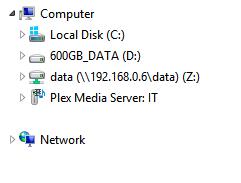
*Edit: This is also valid for Win7, just much less necessary on that OS.
Last edited by James; 02-26-2013 at 08:50 AM.
Crusader for the 64-bit Era.
New Rule: 2GB per core, minimum.
Intel i7-9700K | Asrock Z390 Phantom Gaming ITX | Samsung 970 Evo 2TB SSD
64GB DDR4-2666 Samsung | EVGA RTX 2070 Black edition
Fractal Arc Midi |Seasonic X650 PSU | Klipsch ProMedia 5.1 Ultra | Windows 10 Pro x64
-
Originally Posted by James
Open a folder, any folder, and right click on the Computer icon in the "menu" bar on the left hand side. (I have no idea what that section is actually called.)
*Edit: This is also valid for Win7, just much less necessary on that OS.
it is in All Apps in windows 8 , the fastest way to find it is , goto search (slide from right / position mouse at any right corner) , chose apps , type in Computer , it will appear , right click on it , and choose pin to start ...
or from Start Tiles menu , slide up from bottom / right click , click on AllApps , and search for Computer ... and pin it.
Edit : I use this , they have a free lite version , it is 32bit but works with 64 bit .. the paid version has full 64 bit support
http://zabkat.com/
Last edited by PCVSNotebook; 02-26-2013 at 10:06 AM.
-
Originally Posted by PCVSNotebook
...the fastest way to find it is , goto search (slide from right / position mouse at any right corner) , chose apps , type in Computer , it will appear , right click on it , and choose pin to start ...
And that's faster than clicking on the folder icon already on the desktop taskbar and then right clicking on Computer?
Crusader for the 64-bit Era.
New Rule: 2GB per core, minimum.
Intel i7-9700K | Asrock Z390 Phantom Gaming ITX | Samsung 970 Evo 2TB SSD
64GB DDR4-2666 Samsung | EVGA RTX 2070 Black edition
Fractal Arc Midi |Seasonic X650 PSU | Klipsch ProMedia 5.1 Ultra | Windows 10 Pro x64
-
Originally Posted by James
And that's faster than clicking on the folder icon already on the desktop taskbar and then right clicking on Computer?
After pinning it? yes ofc .. it will be one click after that.
Besides , I was hinting at where to find stuff. it is more profi to goto all apps and find things there and then pin them to the tile menu ... your way is called the lucky way not the profi way ... to find it by chance on a folder ... what if not there ? you missed the All Apps thing all together. He missed it too .. my way is educational .. yours is the lucky hit way
add to it , the search is handy and is there for a purpose ... he needs to learn to USE the search ... they put it on the main slide for a purpose. He missed typing "computer" there too
You need to upgrade your ways from win7 to win 8 .... you are still stuck to win7
Last edited by PCVSNotebook; 02-26-2013 at 10:03 PM.
-
Originally Posted by PCVSNotebook
After pinning it? yes ofc .. it will be one click after that.
Besides , I was hinting at where to find stuff. it is more profi to goto all apps and find things there and then pin them to the tile menu ... your way is called the lucky way not the profi way ... to find it by chance on a folder ... what if not there ? you missed the All Apps thing all together. He missed it too .. my way is educational .. yours is the lucky hit way
add to it , the search is handy and is there for a purpose ... he needs to learn to USE the search ... they put it on the main slide for a purpose. He missed typing "computer" there too
You need to upgrade your ways from win7 to win 8 .... you are still stuck to win7
- What does profi mean?
- The bar on the left of every single folder view by default having the Computer icon is not lucky or chance. It is a design decision by Microsoft.
- As for the search. That is my main interaction with Win8. My main complaint with the search is that it is not universal by default. Having to define the category on the right hand side (Apps, Settings, or Files) slows the functionality way, waaay down  . This is actually a step back from Windows 7, where hitting the Windows Key + start typing searched everything. This search functionality is one of the main reasons that I'm one of the few people in my circle of coworkers and friends who don't hate Windows 8. I've grown very accustomed to using search to find applications and files. However, Win8 segregating searches is not an improvement. Supposedly Windows Blue might revert to universal search. If so, that makes me happy. Universal search is one thing I miss. A lot. . This is actually a step back from Windows 7, where hitting the Windows Key + start typing searched everything. This search functionality is one of the main reasons that I'm one of the few people in my circle of coworkers and friends who don't hate Windows 8. I've grown very accustomed to using search to find applications and files. However, Win8 segregating searches is not an improvement. Supposedly Windows Blue might revert to universal search. If so, that makes me happy. Universal search is one thing I miss. A lot.
*Edit: And please refrain from attacking me personally. You don't know me. Don't assume.
Last edited by James; 02-27-2013 at 09:01 AM.
Crusader for the 64-bit Era.
New Rule: 2GB per core, minimum.
Intel i7-9700K | Asrock Z390 Phantom Gaming ITX | Samsung 970 Evo 2TB SSD
64GB DDR4-2666 Samsung | EVGA RTX 2070 Black edition
Fractal Arc Midi |Seasonic X650 PSU | Klipsch ProMedia 5.1 Ultra | Windows 10 Pro x64
-
Originally Posted by James
- What does profi mean?
- The bar on the left of every single folder view by default having the Computer icon is not lucky or chance. It is a design decision by Microsoft.
- As for the search. That is my main interaction with Win8. My main complaint with the search is that it is not universal by default. Having to define the category on the right hand side (Apps, Settings, or Files) slows the functionality way, waaay down . This is actually a step back from Windows 7, where hitting the Windows Key + start typing searched everything. This search functionality is one of the main reasons that I'm one of the few people in my circle of coworkers and friends who don't hate Windows 8. I've grown very accustomed to using search to find applications and files. However, Win8 segregating searches is not an improvement. Supposedly Windows Blue might revert to universal search. If so, that makes me happy. Universal search is one thing I miss. A lot.
*Edit: And please refrain from attacking me personally. You don't know me. Don't assume.
lol , well you missed something  , he is working on a 10 inch Full HD Tablet , it is very hard to use touch on tiny icons and texts .. thats why I suggested to him the All APPS , coz they are in large tiles he can touch them and pin them easily ... your finger will never manage to press on a single tiny icon , Full HD on 10 inch is no way touch friendly if you use it windows 7 way. , he is working on a 10 inch Full HD Tablet , it is very hard to use touch on tiny icons and texts .. thats why I suggested to him the All APPS , coz they are in large tiles he can touch them and pin them easily ... your finger will never manage to press on a single tiny icon , Full HD on 10 inch is no way touch friendly if you use it windows 7 way.
when did I attack you ? we just disagreed .. I never Attacked you .. I just said you are stuck to windows 7 ways ... and I said you are using lucky hint instead of pointing at where the actual "Computer" is .. the icon you are using is a shortcut to it not the main "Tile" and you are lucky they added a "pin option" to a shortcut...
I learned alot from you here dont worry I wont attack you (unless you attack).
and I never felt offended when you said to me that your way is better than my way lol I didnt consider that an attack ...
Edit : ow and next time , advice people to use the "search"  :P :P 
Last edited by PCVSNotebook; 02-27-2013 at 04:00 PM.
-
Hammerhead Shark
Originally Posted by James
Open a folder, any folder, and right click on the Computer icon in the "menu" bar on the left hand side. (I have no idea what that section is actually called.)
*Edit: This is also valid for Win7, just much less necessary on that OS.
Thanks James;
I did find it. But like many things in Windows 8, the normal methods of doing things don't work. Windows 8 makes a LOT more sense on the Surface, but there are still changes that seem spurious to me. Unless altering the way of doing something improves the process, it shouldn't be changed. At least in my opinion.
RIG:
XCLIO 2000 Black & Titanium Case
KingWin Gold Certified 80+ 1000 Watt PS
Asus P8Z77-V Premium Motherboard
Intel Core I7 3770K @ 5.0 gHz
Corsair CWCH70 Hydro Series H80 CPU Liquid Cooler
CORSAIR Vengence 16GB
PowerColor Radeon 7990 6GB
OCZ Vertex 3 SATA 3 SSD
1TB WD Black Edition SATA 3 + 3TB Seagate SATA 3
Panasonic DVD
Windows 7 Ultimate - 64 bit
 Posting Permissions
- You may not post new threads
- You may not post replies
- You may not post attachments
- You may not edit your posts
-
Forum Rules
|
|


 Reply With Quote

